The git revision control system

The base code of Nori is provided as a git repository. git is the most widespread distributed version control system in use today—it is a good idea to familiarize yourself with this system if you've never used it before.

Traditionally, a version control system (VCS) allows a team of people to collaboratively edit a repository of files. Multiple people might happen to work on the same file, and the job of the VCS is to track the (potentially conflicting) modifications and merge them into an unambiguous repository state that is usable to the rest of the team. These systems (e.g. CVS, SVN) store the authoritative repository state in a central repository server. Any changes must be committed to this server so that other team members can access them.

A distributed version control system (DVCS) is conceptually similar: multiple people can collaborate, and there is usually a central repository server. The main difference is that there is nothing special about this server: anyone with sufficient permissions can copy the entire repository state including history data using an operation referred to as cloning. From that point on, the local copy acts as a full-fledged repository server that works without a network connection to the central server. Users can inspect the history of files and even commit new changes, which are stored in the local copy. To allow another user to see these changes, they can either be pushed to that user's DVCS server, or they can be pushed to a central server and then pulled by the recipient. There are many providers (such as github or Bitbucket) which offer free repository hosting for open source projects. Because there is nothing special about the central server, it's easy to switch providers, and anyone can start their own version of an existing repository (this is referred to as forking).

Why git?

You may wonder why we use git in this course given that students are expected to work on their own. There are multiple good reasons to use it even for a single-user workflow:

Recommended learning resources for git are: try git, git-the simple guide, the git immersion tutorial, and the extensive free Pro Git ebook. The remainder of this section describes the steps needed to clone and compile the Nori base code.

Setting up GitHub Classroom

You will receive your own private GitHub Classroom repository to work on your programming assignments. Please follow our instructions to get everything set up.

Setting up a C++ compiler and building the base code

Linux / macOS

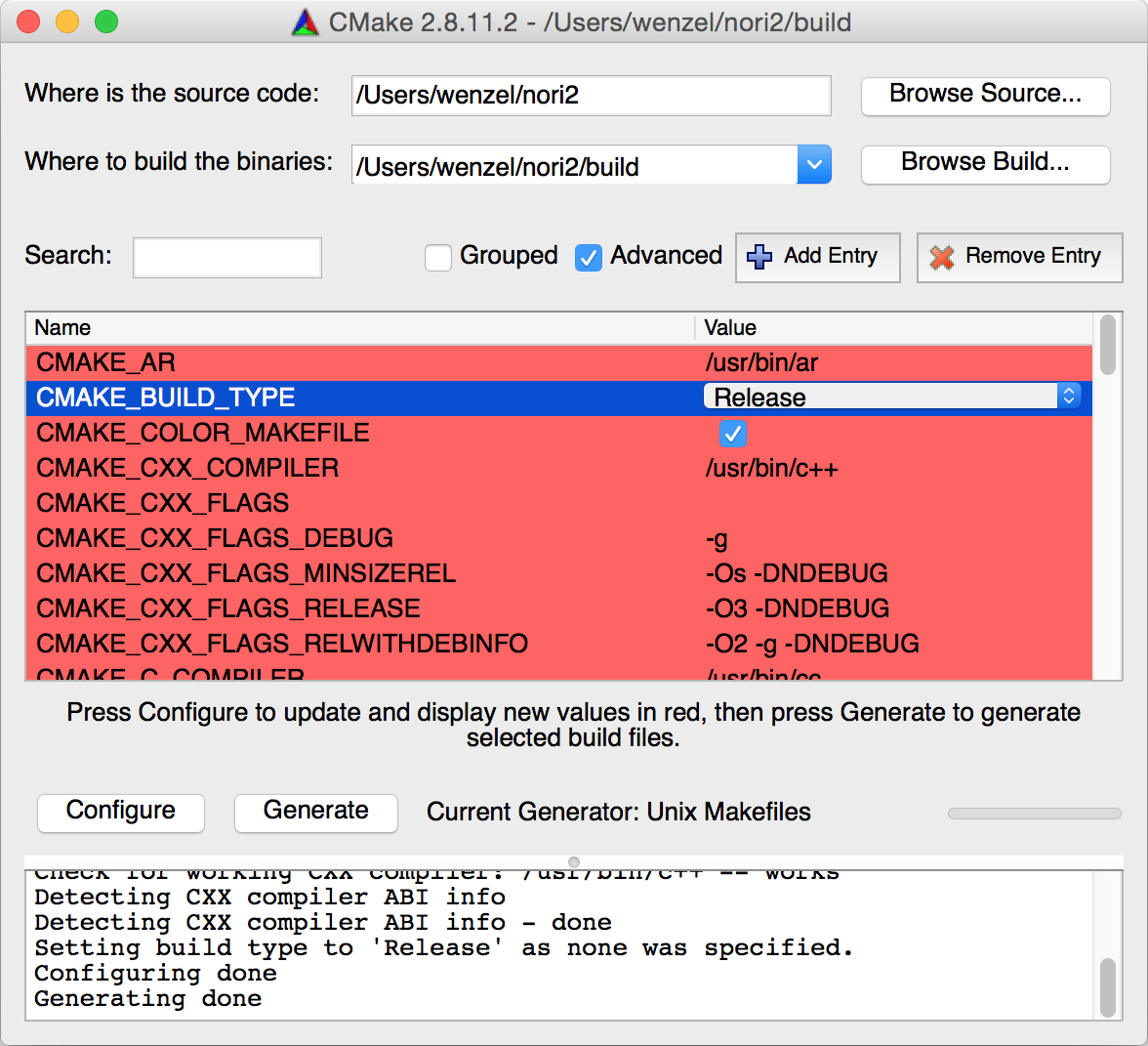
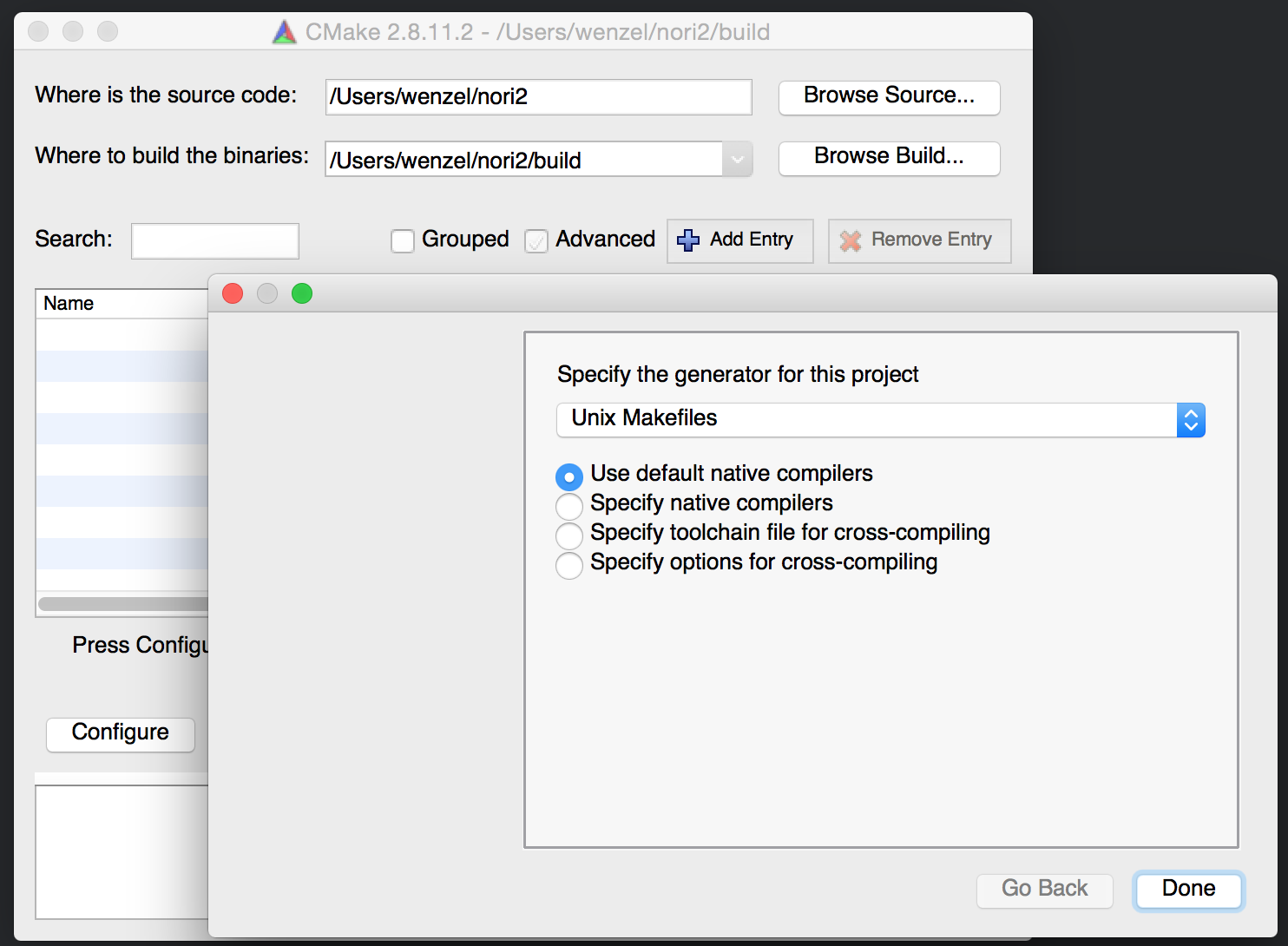
Begin by installing the CMake build system on your system. On Mac OS X, you will also need to install a reasonably up-to-date version of XCode along with the command line tools. On Linux, any reasonably recent version of GCC or Clang will work. Navigate to the Nori folder, create a build directory and start cmake-gui, like so:

$ cd path-to-nori
$ mkdir build
$ cd build
$ cmake-gui ..
Set the build type to "Unix Makefiles" and then press the Configure and Generate buttons.
After the Makefiles are generated, simply run make to compile all dependencies and Nori itself.
$ make -j 
This can take quite a while; the above command compiles with as many processors as available. Note that you will probably see many warning messages while the dependencies are compiled—you can ignore them.
Tip: it's a good idea to set the build mode to Release unless you are tracking down a particular bug. The debug version runs much slower (by a factor of 50 or more).

If you're working on Linux, you might have to install a few dependencies separately via your system's package manager. On Kubuntu for example, the following line is necessary:

$ apt-get install zlib1g-dev xorg-dev libglu1-mesa-dev 

Windows / Visual Studio 2026

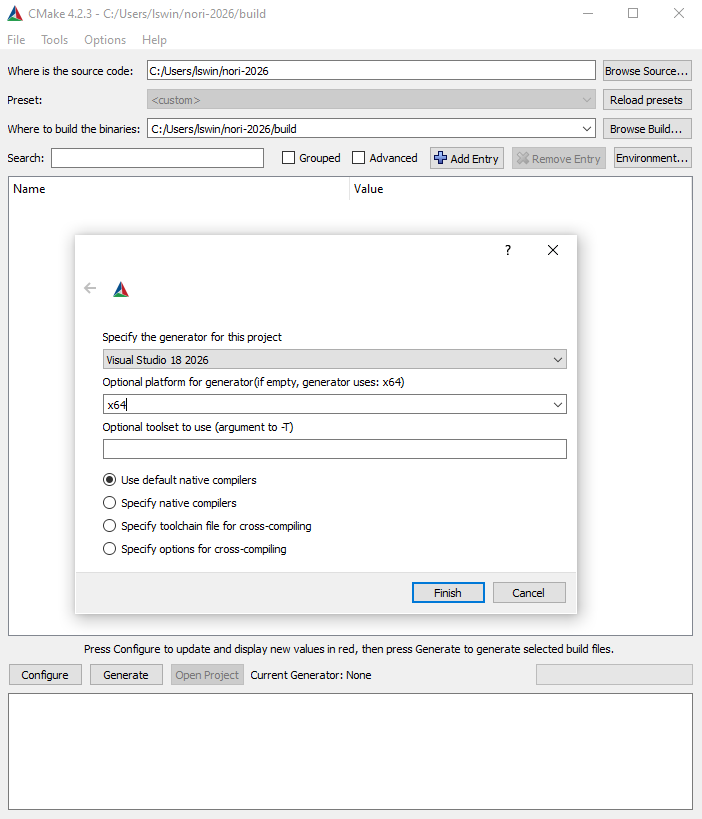
Begin by installing Visual Studio 2026 and a reasonably recent (≥ 4.2) version of CMake. Start CMake and navigate to the location where you cloned the Nori repository.

Be sure to select the Visual Studio 2026 64 bit compiler. It is also generally a good idea to choose a build directory that is different from the source directory.

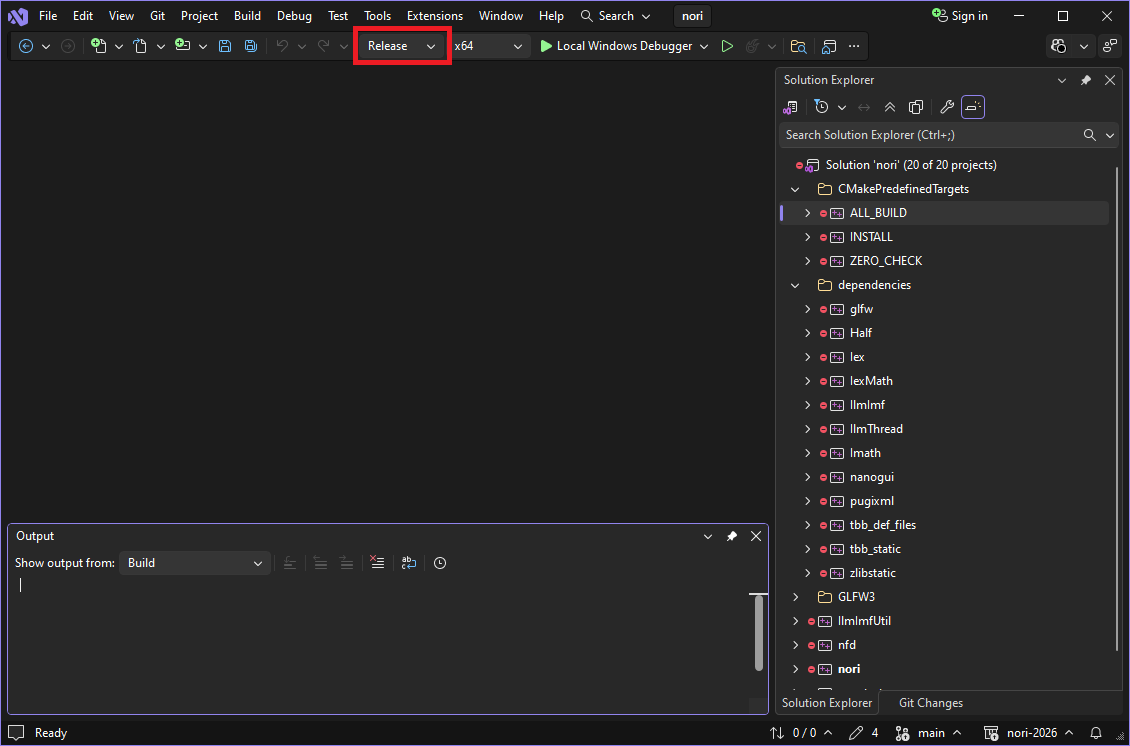
After setting up the project, click the Configure and Generate button. This will create a file called nori.slnx—double-click it to open Visual Studio.

The opened Visual Studio 2026 project. It's a good idea to set the build mode to Release (see the red marker) unless you are tracking down a particular bug. The debug version runs much slower (by a factor of 50 or more).
The Build->Build Solution menu item will automatically compile all dependency libraries and Nori itself; the resulting executable is written to the Release or Debug subfolder of your chosen build directory. Note that you will probably see many warning messages while the dependencies are compiled—you can ignore them.

A high-level overview

The Nori repository consists of the base code files (left table) and several dependency libraries (right table) that are briefly explained below.
Directory Description
srcA directory containing the main C++ source code
include/noriA directory containing header files with declarations
extExternal dependency libraries (see the table right)
scenesExample scenes and test datasets to validate your implementation
CMakeLists.txtA CMake build file which specifies how to compile and link Nori
CMakeConfig.txtA low-level CMake build file which specifies how to compile and link several dependency libraries upon which Nori depends. You probably won't have to change anything here.
Directory Description
ext/openexrA high dynamic range image format library
ext/pcg32A tiny self-contained pseudorandom number generator
ext/filesystemA tiny self-contained library for manipulating paths on various platforms
ext/pugixmlA light-weight XML parsing library
ext/tbbIntel's Boost Thread Building Blocks for multi-threading
ext/tinyformatType-safe C++11 version of printf and sprintf
ext/hypothesisFunctions for statistical hypothesis tests
ext/nanoguiA minimalistic GUI library for OpenGL
ext/nanogui/ext/eigenA linear algebra library used by nanogui and Nori.
ext/zlibA compression library used by OpenEXR
Let's begin with a brief overview of the most important dependencies:

Eigen

When developing any kind of graphics-related software, it's important to be familiar with the core mathematics support library that is responsible for basic linear algebra types, such as vectors, points, normals, and linear transformations. Nori uses Eigen 3 for this purpose. We don't expect you to understand the inner workings of this library but recommend that you at least take a look at the helpful tutorial provided on the Eigen web page.

Nori provides a set of linear algebra types that are derived from Eigen's matrix/vector class (see e.g. the header file include/nori/vector.h). This is necessary because we will be handling various quantities that require different treatment when undergoing homogeneous coordinate transformations, and in particular we must distinguish between positions, vectors, and normals. The main subset of types that you will most likely use are:

  • Point2i,
  • Point2f,
  • Point3f,
  • Vector2i,
  • Vector2f,
  • Vector3f, and
  • Normal3f.
where the number indicates the dimension and the subsequent character denotes the underlying scalar type (i.e. integer or single precision floating point).

pugixml

The pugixml library implements a tiny XML parser that we use to load Nori scenes. The format of these scenes is described below. The XML parser is fully implemented for your convenience, but you may have to change it if you wish to extend the file format for your final project.

pcg32

PCG is a family of tiny pseudorandom number generators with good performance that was recently proposed by Melissa O'Neill. The full implementation of pcg32 (one member of this family) is provided in a single header file in ext/pcg32/pcg32.h. You will be using this class as a source of pseudo-randomness starting with the second programming assignment on sample generation.

Hypothesis test support library

With each programming assignment, we will provide statistical hypothesis tests that you can use to verify that your algorithms are implemented correctly. You can think of them as unit tests with a little extra twist: suppose that the correct result of a certain computation in a is given by a constant \(c\). A normal unit test would check that the actual computed \(c'\) satisfies \(|c-c'|<\varepsilon\) for some small constant \(\varepsilon\) to allow for rounding errors etc. However, rendering algorithms usually employ randomness (they are Monte Carlo algorithms), and in practice the computed answer \(c'\) can be quite different from \(c\), which makes it tricky to choose a suitable constant \(\varepsilon\).

A statistical hypothesis test, on the other hand, analyzes the computed value and an estimate of its variance and tries to assess how likely it is that the difference \(|c-c'|\) is due to random noise or an actual implementation bug. When it is extremely unlikely (usually \(p<0.001\)) that the error could be attributed to noise, the test reports a failure.

OpenEXR

OpenEXR is a standardized file format for storing high dynamic range images. It was originally developed by Industrial Light and Magic and is now widely used in the movie industry and for rendering in general. The directory ext/openexr contains the open source reference implementation of this standard. You will probably not be using this library directly but through Nori's Bitmap class implemented in src/bitmap.cpp and include/nori/bitmap.h to load and write OpenEXR files.

NanoGUI

The NanoGUI library creates an OpenGL window and provides a small set of user interface elements (buttons, sliders, etc.). We use it to show the preview of the image being rendered. This library could be useful if your final project involves some kind of user interaction.

Intel Thread Building Blocks

The tbb directory contains Intel's Thread Building Blocks. This is a library for parallelizing various kinds of programs similar in spirit to OpenMP and Grand Central Dispatch on Mac OS. You will see in the course that renderings often require significant amounts of computation, but this computation is easy to parallelize. We use TBB because it is more portable and flexible than the aforementioned platform-specific solutions. The basic rendering loop in Nori (in src/main.cpp) is already parallelized, so you will probably not have to read up on this library unless you plan to parallelize a custom algorithm for your final project.

Running Nori

Nori can be run in the command line by specifying the path to an XML scene file:
$ ./nori path/to/scene.xml
Nori also takes an optional argument --threads (or -t) that specifies the number of threads to use to render the scene:
$ ./nori path/to/scene.xml --threads 4
If the argument is not specified, TBB automatically chooses the number of threads.

Scene file format and parsing

Take a moment to browse through the header files in include/nori. You will generally find all important interfaces and their documentation in this place. Most headers files also have a corresponding .cpp implementation file in the src directory. The most important class is called NoriObject—it is the base class of everything that can be constructed using the XML scene description language. Other interfaces (e.g. Camera) derive from this class and expose additional more specific functionality (e.g. to generate an outgoing ray from a camera).

Nori uses a very simple XML-based scene description language, which can be interpreted as a kind of building plan: the parser creates the scene step by step as it reads the scene file from top to bottom. The XML tags in this document are interpreted as requests to construct certain C++ objects including information on how to put them together.

Each XML tag is either an object or a property. Objects correspond to C++ instances that will be allocated on the heap. Properties are small bits of information that are passed to an object at the time of its instantiation. For instance, the following snippet creates red diffuse BSDF:

<bsdf type="diffuse">
    <color name="albedo" value="0.5, 0, 0"/>
</bsdf>

Here, the <bsdf> tag will cause the creation of an object of type BSDF, and the type attribute specifies what specific subclass of BSDF should be used. The <color> tag creates a property of name albedo that will be passed to its constructor. If you open up the C++ source file src/diffuse.cpp, you will see that there is a constructor, which looks for this specific property:

Diffuse(const PropertyList &propList) {
    m_albedo = propList.getColor("albedo", Color3f(0.5f));
}

The piece of code that associates the "diffuse" XML identifier with the Diffuse class in the C++ code is a macro found at the bottom of the file:

NORI_REGISTER_CLASS(Diffuse, "diffuse");

Certain objects can be nested hierarchically. For example, the following XML snippet creates a mesh that loads its contents from an external OBJ file and assigns a red diffuse BRDF to it.

<mesh type="obj">
    <string type="filename" value="bunny.obj"/>

    <bsdf type="diffuse">
        <color name="albedo" value="0.5, 0, 0"/>
    </bsdf>
</mesh>

Implementation-wise, this kind of nesting will cause a method named addChild() to be invoked within the parent object. In this specific example, this means that Mesh::addChild() is called, which roughly looks as follows:

void Mesh::addChild(NoriObject *obj) {
    switch (obj->getClassType()) {
        case EBSDF:
            if (m_bsdf)
                throw NoriException(
                    "Mesh: multiple BSDFs are not allowed!");
            /// Store pointer to BSDF in local instance
            m_bsdf = static_cast<BSDF *>(obj);
            break;
    // ..(omitted)..
}
This function verifies that the nested object is a BSDF, and that no BSDF was specified before; otherwise, it throws an exception of type NoriException.

The following different types of properties can currently be passed to objects within the XML description language:

<!-- Basic parameter types -->
<string name="property name" value="arbitrary string"/>
<boolean name="property name" value="true/false"/>
<float name="property name" value="float value"/>
<integer name="property name" value="integer value"/>
<vector name="property name" value="x, y, z"/>
<point name="property name" value="x, y, z"/>
<color name="property name" value="r, g, b"/>
<!-- Linear transformations use a different syntax -->
<transform name="property name">
    <!-- Any sequence of the following operations: -->
    <translate value="x, y, z"/>
    <scale value="x, y, z"/>
    <rotate axis="x, y, z" angle="deg."/>
    <!-- Useful for cameras and spot lights: -->
    <lookat origin="x,y,z" target="x,y,z" up="x,y,z"/>
</transform>

The top-level element of any scene file is usually a <scene> tag, but this is not always the case. For instance, some of the programming assignments will ask you to run statistical tests on BRDF models or rendering algorithms, and these tests are also specified using the XML scene description language, like so:

<?xml version="1.0"?>

<test type="chi2test">
    <!-- Run a χ2 test on the microfacet BRDF model (@ 0.01 significance level) -->
    <float name="significanceLevel" value="0.01"/>

    <bsdf type="microfacet">
        <float name="alpha" value="0.1"/>
    </bsdf>
</test>

Creating your first Nori class

In Nori, rendering algorithms are referred to as integrators because they generally solve a numerical integration problem. The remainder of this section explains how to create your first (dummy) integrator which visualizes the surface normals of objects.

We begin by creating a new Nori object subclass in src/normals.cpp with the following content:

#include <nori/integrator.h>

NORI_NAMESPACE_BEGIN

class NormalIntegrator : public Integrator {
public:
    NormalIntegrator(const PropertyList &props) {
        m_myProperty = props.getString("myProperty");
        std::cout << "Parameter value was : " << m_myProperty << std::endl;
    }

    /// Compute the radiance value for a given ray. Just return green here
    Color3f Li(const Scene *scene, Sampler *sampler, const Ray3f &ray) const {
        return Color3f(0, 1, 0);
    }

    /// Return a human-readable description for debugging purposes
    std::string toString() const {
        return tfm::format(
            "NormalIntegrator[\n"
            "  myProperty = \"%s\"\n"
            "]",
            m_myProperty
        );
    }
protected:
    std::string m_myProperty;
};

NORI_REGISTER_CLASS(NormalIntegrator, "normals");
NORI_NAMESPACE_END
To try out this integrator, we first need to add it to the CMake build system: for this, open CMakeLists.txt and look for the command
add_executable(nori,
  # Header files
  include/nori/bbox.h
  ...

  # Source code files
  src/bitmap.cpp
  ...
)

Add the line src/normals.cpp at the end of the source file list and recompile. If everything goes well, CMake will create an executable named nori (or nori.exe on Windows) which you can call on the command line.

Finally, create a small test scene with the following content and save it as test.xml:

<?xml version="1.0"?>

<scene>
    <integrator type="normals">
        <string name="myProperty" value="Hello!"/>
    </integrator>

    <camera type="perspective"/>
</scene>

This file instantiates our integrator and creates the default camera setup. Running nori with this scene causes two things to happen:
First, some text output should be visible on the console:
$ ./nori test.xml

Property value was : Hello!

Configuration: Scene[
  integrator = NormalIntegrator[
    myProperty = "Hello!"
  ],
  sampler = Independent[sampleCount=1]
  camera = PerspectiveCamera[
    cameraToWorld = [1, 0, 0, 0;
                     0, 1, 0, 0;
                     0, 0, 1, 0;
                     0, 0, 0, 1],
    outputSize = [1280, 720],
    fov = 30.000000,
    clip = [0.000100, 10000.000000],
    rfilter = GaussianFilter[radius=2.000000, stddev=0.500000]

  ],
  medium = null,
  envEmitter = null,
  meshes = {
  }
]

Rendering .. done. (took 93.0ms)
Writing a 1280x720 OpenEXR file to "test.exr"
The Nori executable echoed the property value we provided, and it printed a brief human-readable summary of the scene. The rendered scene is saved as an OpenEXR file named test.exr as well as a (sRGB) tonemapped PNG image named test.png.
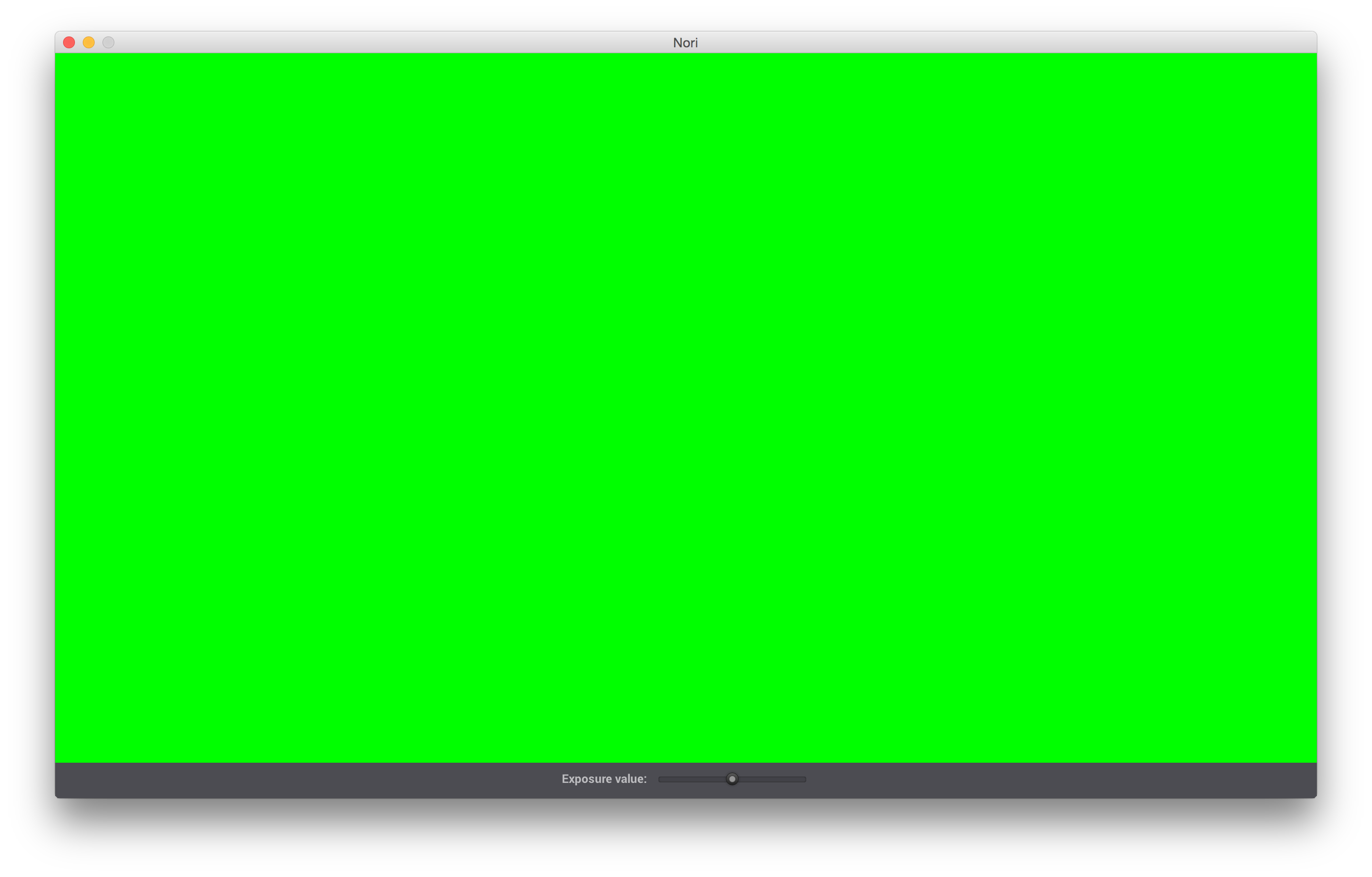
Secondly, a solid green window pops up. This is the image we just rendered! The slider at the bottom can be used to change the camera exposure value.

Visualizing OpenEXR files

A word of caution: various tools for visualizing OpenEXR images exist, but not all really do what one would expect. Adobe Photoshop works correctly, but Preview.app on Mac OS for instance tonemaps these files in an awkward and unclear way. TEV by Thomas Müller is a good choice, it features useful tools such as false colors or image differences.

If in doubt, you can also use Nori as an OpenEXR viewer: simply run it with an EXR file as parameter, like so:

$ ./nori test.exr

Tracing rays

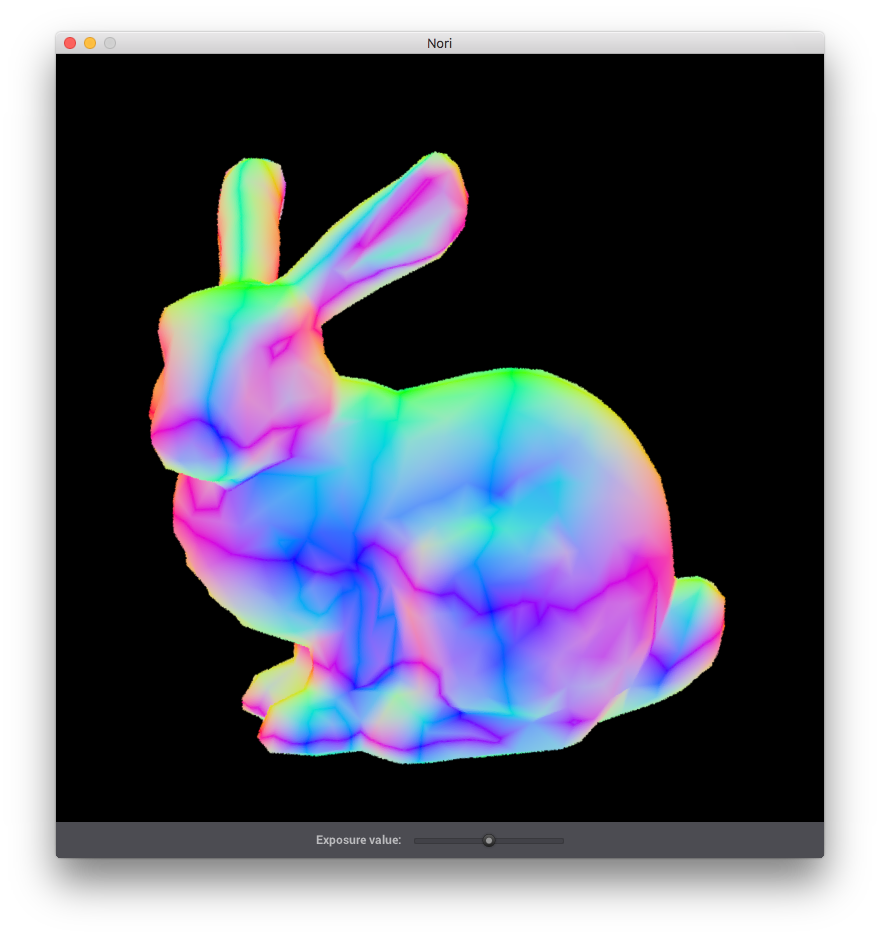
Let's now build a more interesting integrator which traces some rays against the scene geometry. Change the file normals.cpp as shown on the left side. Invoke nori on the file scenes/pa1/bunny.xml, and you should get the image on the right. Please submit the resulting rendered image of the bunny in your homework report to receive credit for making it all the way through the tutorial.

#include <nori/integrator.h>
#include <nori/scene.h>

NORI_NAMESPACE_BEGIN

class NormalIntegrator : public Integrator {
public:
    NormalIntegrator(const PropertyList &props) {
        /* No parameters this time */
    }

    Color3f Li(const Scene *scene, Sampler *sampler, const Ray3f &ray) const {
        /* Find the surface that is visible in the requested direction */
        Intersection its;
        if (!scene->rayIntersect(ray, its))
            return Color3f(0.0f);

        /* Return the component-wise absolute
           value of the shading normal as a color */
        Normal3f n = its.shFrame.n.cwiseAbs();
        return Color3f(n.x(), n.y(), n.z());
    }

    std::string toString() const {
        return "NormalIntegrator[]";
    }
};

NORI_REGISTER_CLASS(NormalIntegrator, "normals");
NORI_NAMESPACE_END
A shading normal rendering of the Bunny scene